PHP 7.4.3 & 8.0.8
WordPress 6.5 · WooCommerce 9.1.0
Free-only stock, CSV, receiving and export checks. Selected minimum Free Firefox/WebKit workflows and actual PDF rendering were exercised.
StockControls Pro · Handbook 1.1.23 · 4 November 2026
The task guides for StockControls Pro, with installation, workspace navigation and recovery guidance.
Use the current matched Free and Pro packages. Update Free first, then Pro if installed, without uninstalling either plugin.
Current online documentation · Contact support · Download this handbook as PDF
Screenshots use fictional sample data. Earlier workflow examples are explicitly labelled 1.1.20; their retained images show that release’s interface. The instructions describe 1.1.23. New 1.1.23 workspace captures, where shown, are labelled separately.
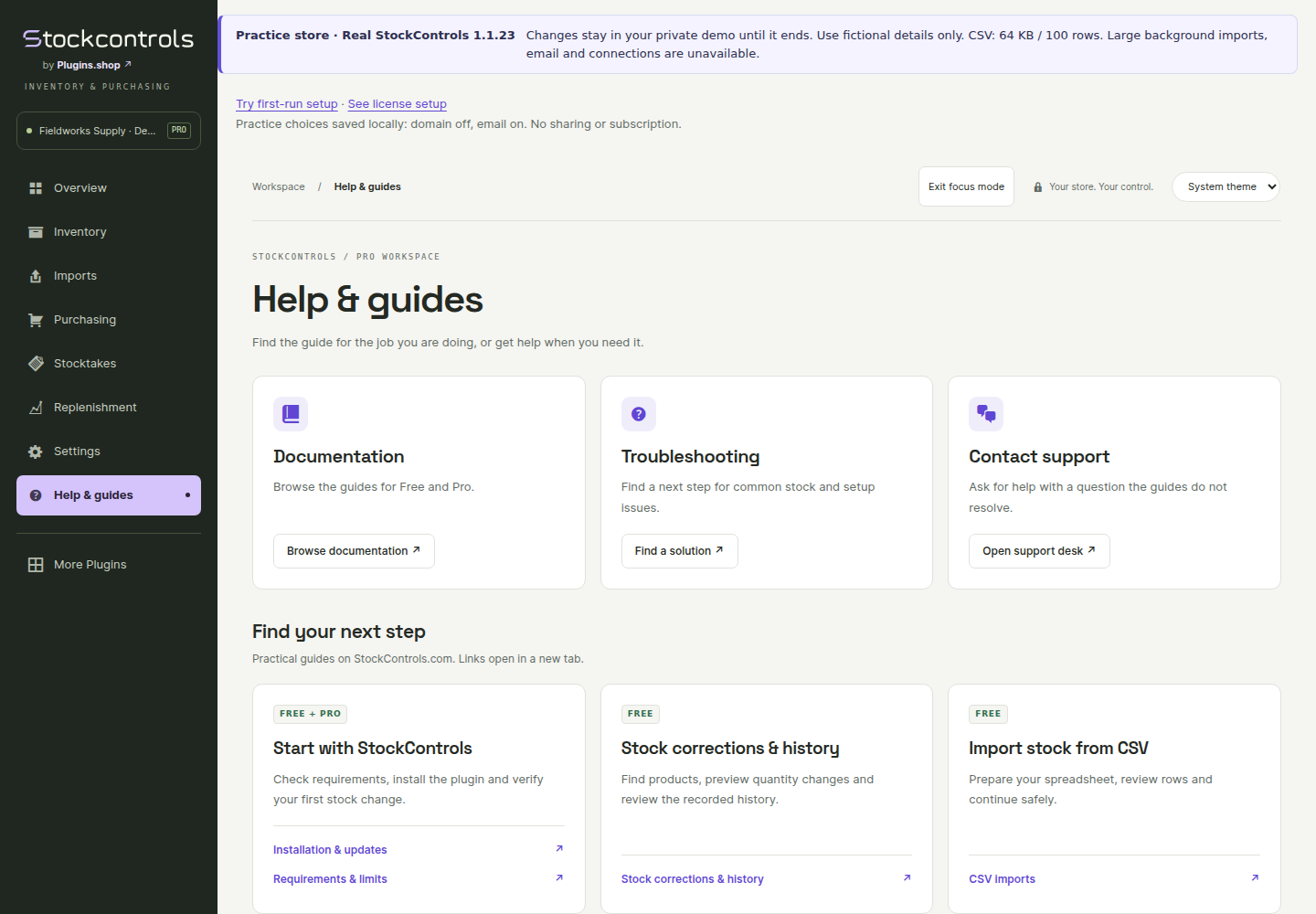
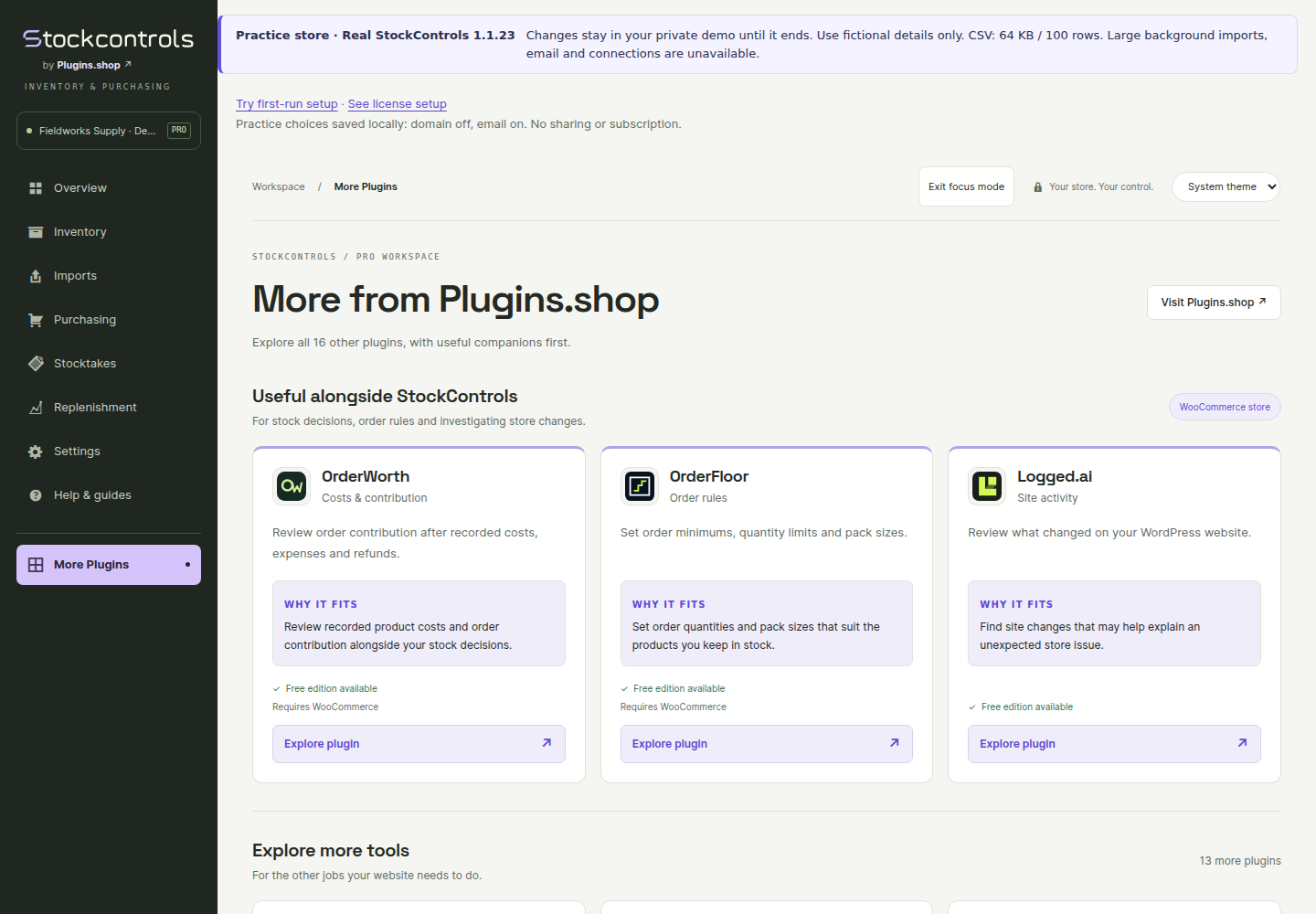
The short StockControls menu groups related tools. Choose a section, then use its tabs: Inventory → Products / Stock history, Imports → Import stock / Large CSV imports, and Purchasing → Purchase orders / Suppliers. Overview → Recent work helps you return to unfinished operations.
With Pro available, use Stocktakes → Saved counts / Team counts, Replenishment → Reorder suggestions (including Review slow-moving stock), or Purchasing → Buying basket. Open Settings for Preferences, Setup & health, History check, Welcome & privacy, Pro license and Pro updates, as permitted for your account. On a narrow screen, expand the workspace menu to choose a section.
Focus view gives StockControls its own sidebar and more room for the work. Use the focus control or Back to WordPress to return. On mobile, open the workspace menu to change sections.
Help & guides opens documentation, troubleshooting, support and both handbooks. More Plugins shows other tools from Plugins.shop.
In Free, the Pro previews On/Off switch shows or hides the three sample workflows. It remembers your choice for your WordPress account on this site. Help, Explore Pro and More Plugins stay available. Activated Pro uses its real workspace tools instead of the Free preview group.
Use a staging copy of your WooCommerce store and take a backup. Validate the installation against your own products and extensions. Check version and database requirements and test other stock, import, POS, or inventory extensions with it.
Have a simple stock-managed product and, if you sell variations, one variation with its own stock and one using parent stock ready for testing.
Prefer a printable reference? Download the Free handbook (PDF) or Pro handbook (PDF).
You can find the official StockControls listing on WordPress.org ↗ through Plugins → Add New Plugin. Check its available version before installing; if it differs from the matched pair below, use the current website ZIP for Free before adding Pro.
Keep Free installed and active. Download the matching Pro ZIP from your purchase account, upload it through the Plugins screen and activate it. The first eligible manual activation opens Settings → Pro license.
Copy your account's license key, review the hostname and choose Connect license. Public connection settings are bundled; no code edits are required. Activate a valid license once on this site to unlock Pro tools. After activation, those tools continue through expiry, service outages and later remote license changes. A successful local Disconnect or Reset local connection pauses Pro until a valid license is connected again. Saved records remain; Free workflows and authorized saved-stocktake exports stay available.
Disconnect first requests release of this site's remote seat. If that request fails, the local connection and earned Pro access remain: retry later, or explicitly choose Reset local connection to clear only this site's connection and Pro permission without sending a request. A local reset does not release the remote seat.
If activation is saved but background setup is reported incomplete, wait for the busy operation to finish and choose Refresh access to retry using the saved connection.
Free includes suppliers, purchase orders and partial/full manual receiving. Pro adds saved stocktakes, team counts, replenishment and supplier buying baskets. License setup never grants email-marketing consent.
Three clearly marked Pro previews explain saved stocktakes, replenishment and advanced buying. Their screenshots use fictional demonstration data. Viewing a preview changes no stock, sends no email and does not activate Pro.
Choose a demo to practice in a separate temporary store, or compare plans when the workflow is useful to you. Open Pro previews & suggestions in Setup & health or Explore Pro. Use the sidebar’s Pro previews On/Off switch or Hide preview pages / Show preview pages in those settings, or Hide suggestion / Show suggestion for Overview, low-stock inventory, counting and purchase orders.
Choosing Get Pro for Saved stocktakes, Get Pro for Replenishment or Get Pro for Advanced purchasing saves that workflow locally for your WordPress account on this store, then opens pricing. The choice is valid for up to seven days. Use Clear chosen task or choose another workflow to change it. Simply opening a preview does not save one. The task is not sent to the pricing website and never approves a stock change. WordPress schedules removal after expiry; a delayed cron may postpone physical deletion, but an expired choice is ignored.
Install the matching Pro add-on, complete the required first license activation, then continue your chosen task. The plugin checks current permissions, settings and data again. Count reconciliation and purchasing still require their normal reviews and confirmations.
An optional review invitation appears only on StockControls Overview after your account has made successful stock changes on at least five distinct days and 30 days have passed since its first recorded change. Visits and previews do not count. Choose Review on WordPress, Remind me in 14 days or No thanks. Reviewing or choosing No thanks permanently hides the invitation for that account and site. Review links in Setup & health and the WordPress Plugins row are optional. All review links and invitations remain hidden until WordPress identifies a public listing for this plugin. No rating is required or rewarded.
Current matched pair: Free and Pro 1.1.23. Pro 1.1.23 requires Free 1.1.23. For existing copies in the current folders, use Upload/Replace to update Free first, then matching Pro, without uninstalling either plugin. The current pair includes the stock safeguards and shared interface assets used by Pro.
Moving from the old stockcontrols folder: deactivate Pro and the old Free plugin. Keep the old Free plugin installed but inactive. Install and activate the new stockcontrols-inventory-operations Free plugin, then replace and activate matching Pro. Do not delete or uninstall the old folder as part of this move. Review and re-enable optional reminders or availability observations if wanted, and refresh planning data.
For Free, use WordPress updates when its directory release is available, or replace the ZIP without uninstalling. With a connected, eligible Pro license, open StockControls → Settings → Pro updates and choose Check for updates. A verified compatible release appears in WordPress Updates.
Optional scheduled checks discover updates about twice daily; enable them only if wanted. To install automatically, also choose Enable auto-updates for StockControls Pro on the WordPress Plugins page. These are separate choices, and the plugin enables neither by default. WordPress scheduling and the host can delay background work. Turn off scheduled checks in Pro updates to stop background discovery and delivery, or disable WordPress auto-updates to keep installation manual.
After renewing expired access, refresh the license or run a manual check. After successful first-site activation, Pro tools continue offline and after access expires. Back up and test updates on staging.
When updating from a version older than 1.1.20, rebuild any existing saved replenishment plans. Earlier calculated generations cannot be used with the current stock-reading rules. Your source products, orders, counts and purchasing records remain. Refresh the catalog map and sales if requested, then build a new plan; check current facts again before buying. An upgrade from before 1.1.17 may also need the stock-history index added in that release. Let storage setup finish and check Settings → Setup & health before changing stock.
Ordinary deactivation retains records. Free has an opt-in deletion setting for movement history and temporary batch results. Pending purchase receipts prevent deletion so they can recover safely; it does not delete WooCommerce quantities or thresholds. Supplier and purchasing records are retained after uninstall. Export and back up records before deliberate removal.
Current guide · Free + Pro 1.1.23
Saved stocktakes require Pro, including single-operator counts. Free provides immediate manual quantity corrections and SKU lookup. Install the matching Free and Pro packages before starting.
Choose up to 25 products from the current page and start a saved count before changing product pages; selections do not carry across pages. Use stock-owning products and avoid counting the same shared parent stock pool twice. Count available-to-sell quantities: exclude goods already allocated to unfulfilled orders, even if they are physically on the shelf.
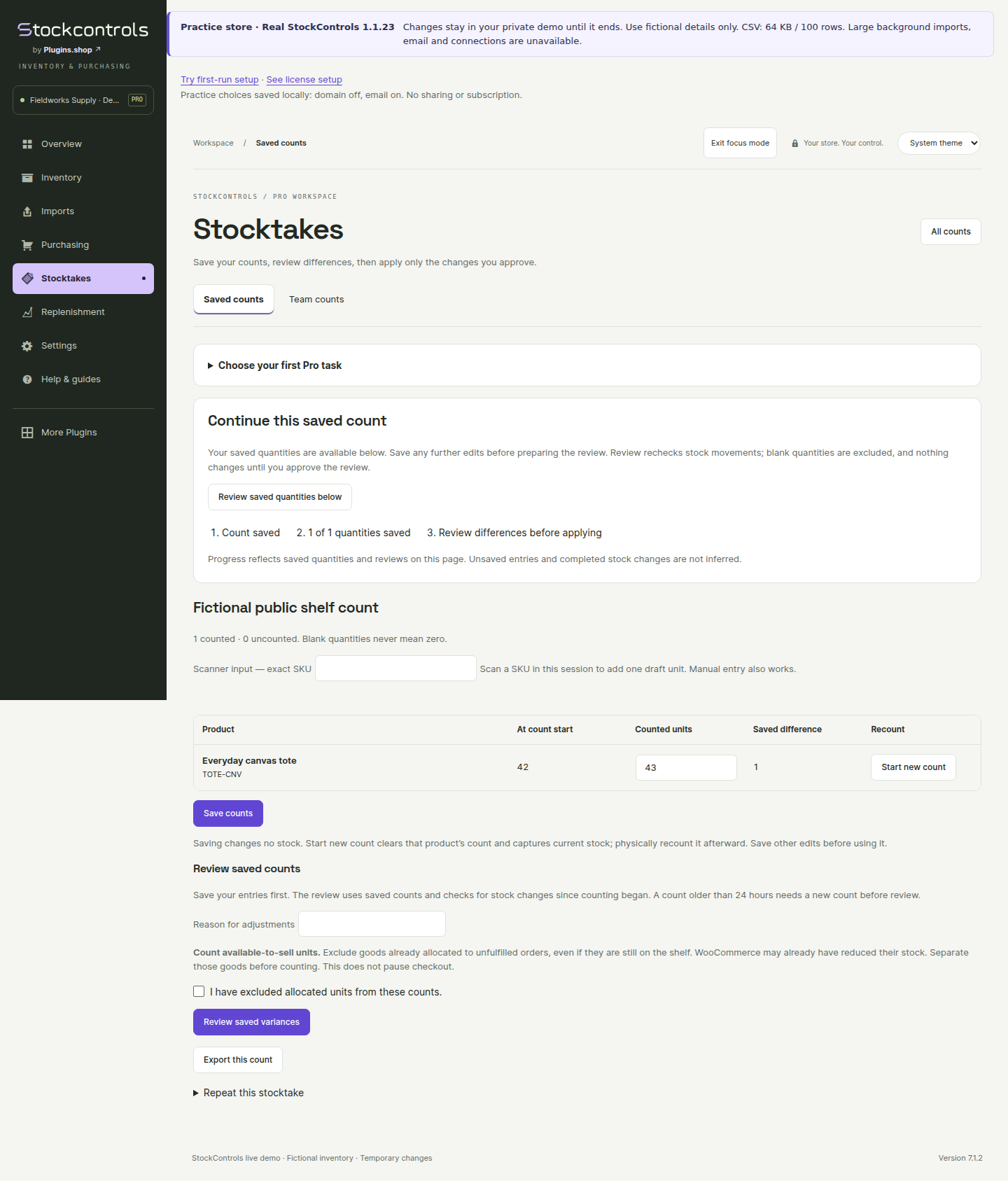
Open Stocktakes → Saved counts, record the quantity counted for each line, then choose Save counts. Pressing Enter in a quantity field saves the entered counts. Use the separate Start new count action only when you intend to clear that line’s saved count and physically count it again. The workspace preserves progress so you can return later. Saving a draft does not update live WooCommerce stock.
Counting does not pause checkout. Sales and other stock changes can continue while you work; review any changed stock before applying a correction.
For an individual saved count, focus Scanner input — exact SKU and scan a SKU to add one draft unit to a unique matching line. Verify the resulting quantity and save your counts. The separate Team counts screen uses manual quantity entry.
Scanning into a draft does not change live stock. Camera scanning and barcode-label generation are not included. SKU lookup and immediate manual corrections remain in Free.
Create a new count and choose Assign team count before entering any quantities. Assign a different WordPress account with the Stock counter role. Blind counts require a counter without product, report or administration permissions.
The counter enters quantities in Stocktakes → Team counts, saves them and submits the round for independent review. The count creator prepares the stock review, inspects it and approves that exact revision before applying it. A new physical recount records another round; previous rounds remain available. Do not overwrite quantities merely to clear a stale-stock warning.
Compare the starting quantity, counted quantity and difference. Prepare the review, inspect the proposed changes and only then reconcile. Changed stock or stock ownership must be reviewed again; a saved draft is not permission to overwrite a newer sale.
A review can apply in bounded steps. Read saved, rejected and retryable results, and resume the same operation after an interruption instead of creating duplicate corrections. Export the count report when you need a record.
Deactivating Pro keeps saved counts and batch results but pauses reconciliation. Reactivate a compatible Pro add-on to resume. For an old unstarted review, return to counting and prepare a fresh review when the screen asks for it.
Keep interrupted results for recovery. Do not delete records directly in the database or uninstall a plugin to clear a stuck count. Use the troubleshooting guide or contact support with the count ID and error.
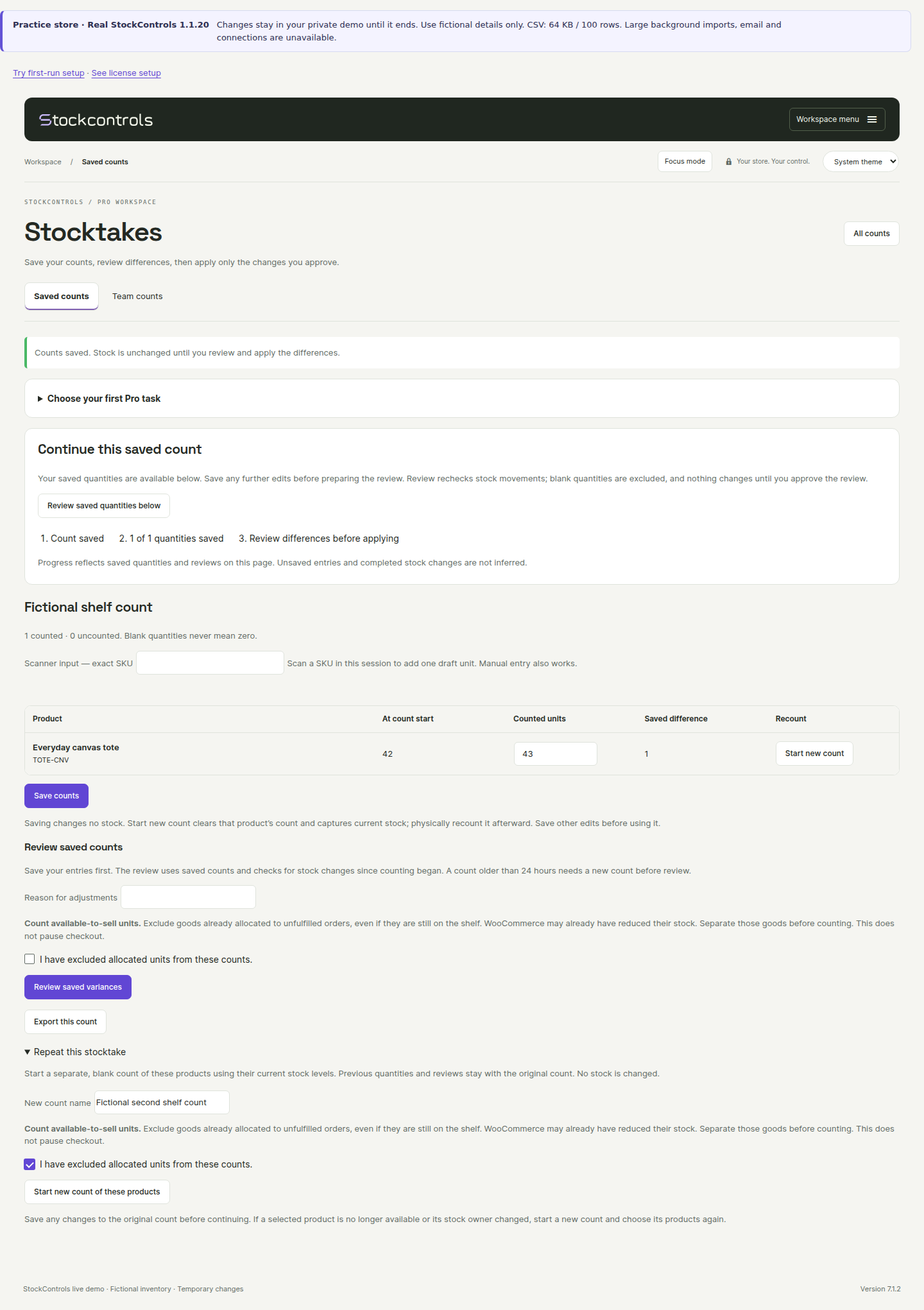
Open an existing saved count and choose Repeat this stocktake. Confirm the current counting basis. Pro starts a separate blank ordinary count using the same selected products and current stock/history baselines. If a selected product is unavailable or its stock owner changed, start a new count and select products again.
The original count stays intact. Counted quantities, team assignments, approval and stock movements are not copied. If the new count is for a team, assign it through the normal team-count workflow before entering quantities.
If a response is interrupted, retry the same submitted form to return to the count it already created. A freshly opened Repeat form intentionally permits another new count. Review the new quantities separately before applying any stock changes.
Assign a supplier and lead time through the Free supplier directory. In Pro, use Set up for one product or select products and open Set up selected products together. Choose the cover, safety, minimum-order or pack fields to change, review before/after values and apply.
Bulk setup preserves stock, supplier, reference and lead time. Previews last 15 minutes; each product saves separately and changed settings are skipped for a fresh review. Check the saved/skipped outcomes. Minimums and packs guide suggestions; they never place a supplier order.
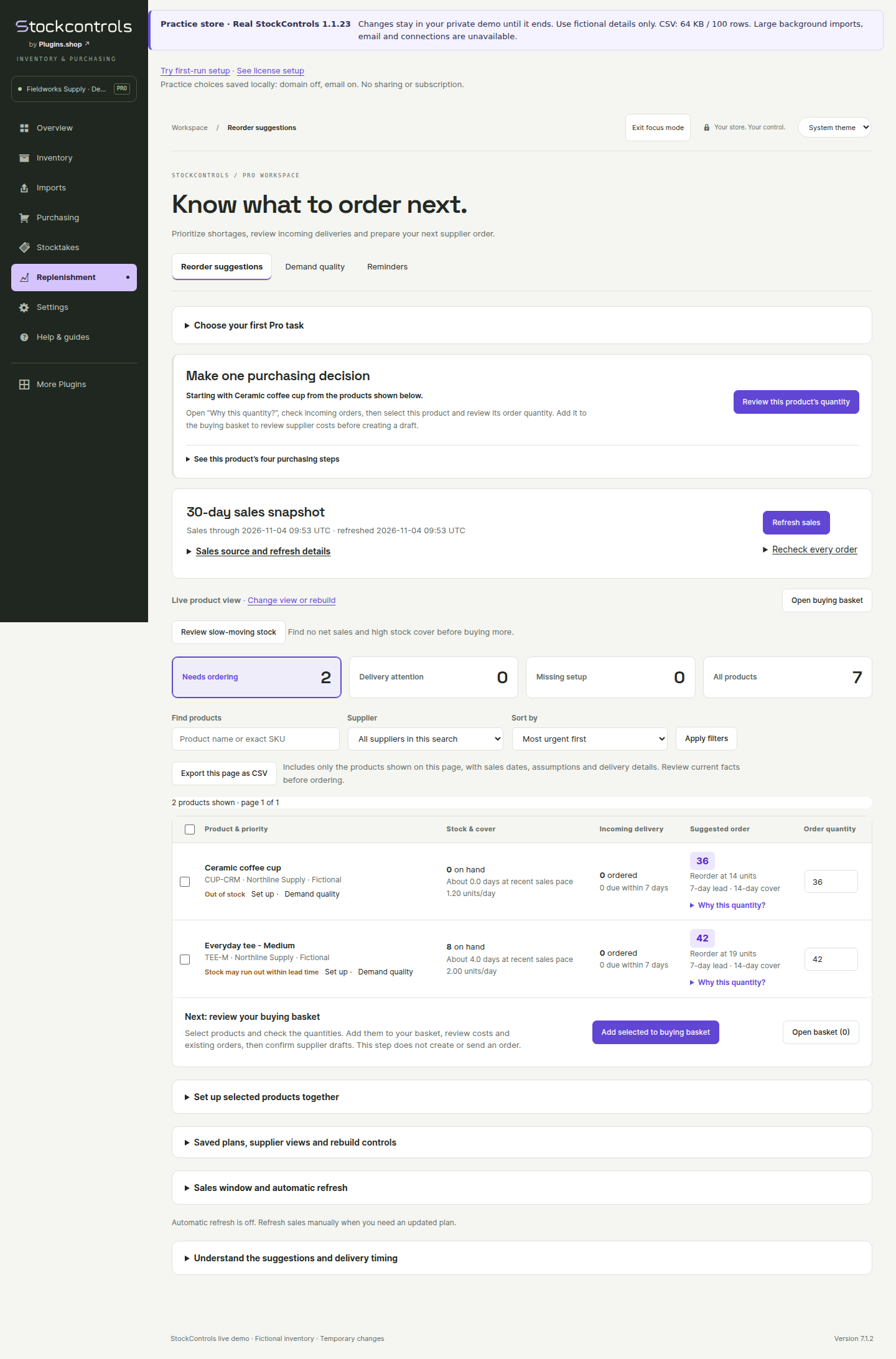
Needs ordering shows positive suggestions. Delivery attention highlights overdue or undated goods, projected stock gaps before arrival and pending receipt recovery. Missing setup identifies unassigned suppliers or incomplete saved settings. Filter by supplier and sort the most urgent products first.
Counts and priority views cover the whole matching search before pagination, up to 2,000 stock-managed products. Narrow a larger search by product name or exact SKU. All products remains available as alphabetical browsing with per-row suggestions; global counts, supplier filters and priority views need the narrower search.
Choose 7, 14, 30, 60, or 90 days. Pro counts net units from processing/completed orders created in that window; quantity refunds reduce demand. Financial-only refunds do not automatically represent returned units.
Refresh manually or enable an optional daily or twice-daily WordPress cron schedule. Scheduled refresh is off by default. Low-traffic stores may need their hosting provider to run WordPress cron reliably.
Each batch processes up to 50 orders, with a 50,000-order limit per refresh. An active job keeps its original window. Suggestions use the last completed snapshot, showing its window and freshness; a failed or unfinished refresh never publishes partial totals.
Negative net sales are shown separately in Stock attention; the reorder calculator floors demand at zero. At or below the reorder point, calculate the positive shortage against the target, raise it to the minimum order if needed, then round up to a whole order pack. Otherwise suggest zero.
Example: 60 units over 30 days is 2 per day. With 7 lead days, 14 cover days, 5 safety units, 8 on hand and no credited incoming, the shortage is 39. A minimum of 40 and pack size of 12 give a suggestion of 48 units.
Only outstanding goods on ordered or partly received POs due from today through the product’s lead-time date reduce a suggestion. Overdue, undated and later deliveries stay visible without credit. Date-only arrivals are modeled at the start of their due day in the store calendar; actual delivery times can differ.
Delivery attention flags a projected stock gap before arrival. Check or expedite existing supplier orders before buying again: excluded goods might still arrive and create excess stock. A pending receipt pauses the product’s suggestion until recovery completes.
This recent-sales baseline does not predict seasonality, lost sales during stockouts, promotions, reservations or uncertain lead times. New products need your judgment. Product suggestions above 1,000,000 units are flagged for review and splitting.
Shared-stock variations contribute demand to their current parent stock owner. Suggestions round to whole units. Draft quantities remain your decision; nothing sends or places an order automatically.
Live priority views cover up to 2,000 matching stock owners. For complete larger views, refresh the catalog map and sales, then open Saved complete plans and build a default or selected-supplier plan. Plans build in batches and support up to 50,000 stock owners, subject to time, memory and storage bounds.
A plan publishes only after complete coverage and permission checks. Its dates describe saved observations: stock and incoming goods can change afterward. Rebuild expired or changed sources and perform a separate current buying review before creating supplier drafts.
Follow the product’s purchasing guide to complete supplier assignment, planning setup and sales refresh. Review the proposed quantity and supplier terms, then use the buying basket to group drafts by supplier. A draft does not place an order with the supplier. Ordinary purchase orders and partial receiving remain available in Free.
Choose Export this page as CSV on replenishment. It downloads the displayed products only, up to 25 per page, including a focused one-product review. It is not an export of a whole 50,000-product saved plan.
The sheet includes observation and sales dates, incoming delivery detail, planning assumptions and warnings. Availability evidence refers to observations within the sales window; missing and unreadable evidence are explained separately. Formula-like text is protected for spreadsheet use.
Reload if the displayed scope changed or a saved plan was rebuilt. A CSV records observations, not permission to place an order. Review current stock, incoming goods and supplier terms before buying.
Earlier calculated plan generations are no longer accepted. Build a fresh saved complete plan using the current stock-reading rules. Your source records, stocktakes and purchase orders are retained.
New saved rows remain dated observations. Later stock changes do not silently rewrite that history. Perform the separate current buying review before preparing supplier drafts.
Supplier comparison explains the quantity after each saved minimum/pack adjustment, extra units, estimated product cost and lead time. Stock attention separates no net sales, high cover and products that could not be assessed.
Keep Free and Pro active and connect your Pro license. Open the product’s saved supplier terms and find Compare buying options. Enter Units needed, then choose Compare suppliers. From a buying basket, use Compare suppliers for this saved quantity.
The comparison is read-only. It neither changes supplier terms nor creates a purchase order.
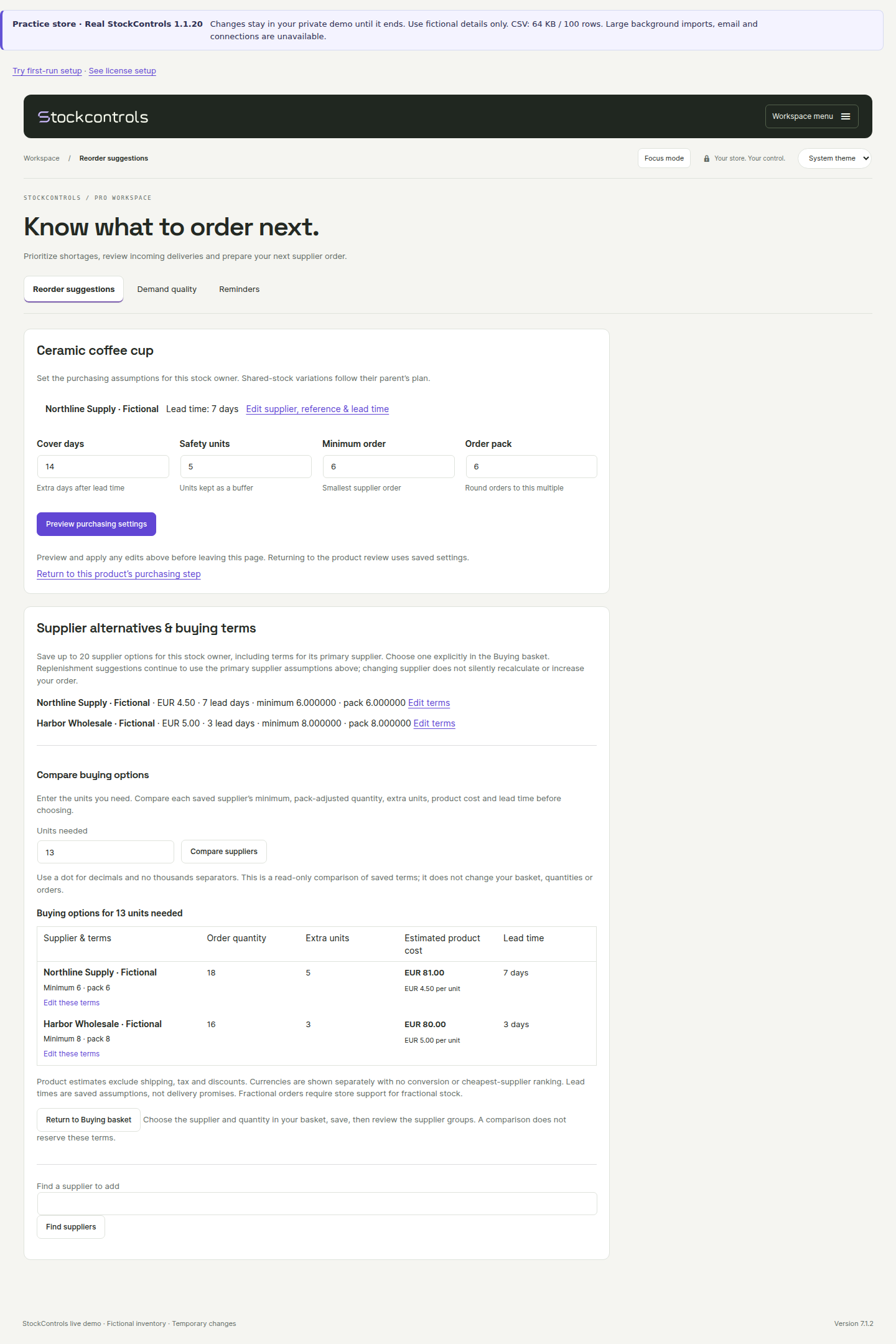
Each saved supplier option applies its own minimum order and pack multiple to the requested quantity. Compare the resulting order quantity and the extra units above your request. Precise supplier quantities require compatible WooCommerce decimal support; unsupported quantities are refused.
Compare estimated product cost and saved lead time alongside the units you would actually buy. A missing cost stays unknown. Different currencies remain separate; no currency conversion runs. Freight and tax are excluded from the estimate.
Saved lead times are planning assumptions, not a live supplier availability or delivery promise. Confirm current terms with the supplier.
Return to your buying basket and choose the supplier and quantity through the existing reviewed workflow. Pro rechecks current permissions, product/supplier identity and saved terms. If something changed, reload and review again.
Ordinary purchase orders, PDF exports and partial/full receiving remain in Free. No email, supplier API order or automatic purchase is sent.
Export the displayed replenishment decisions or continue with a purchase order.
In Pro, open Replenishment → Reorder suggestions, then choose Review slow-moving stock. Choose a completed sales snapshot and review its dates. Filter the live view by product or exact SKU; its complete scope is limited to 2,000 matching stock owners. Narrow a larger search.
The view is read-only and does not create orders, reduce stock or label products for automatic disposal.
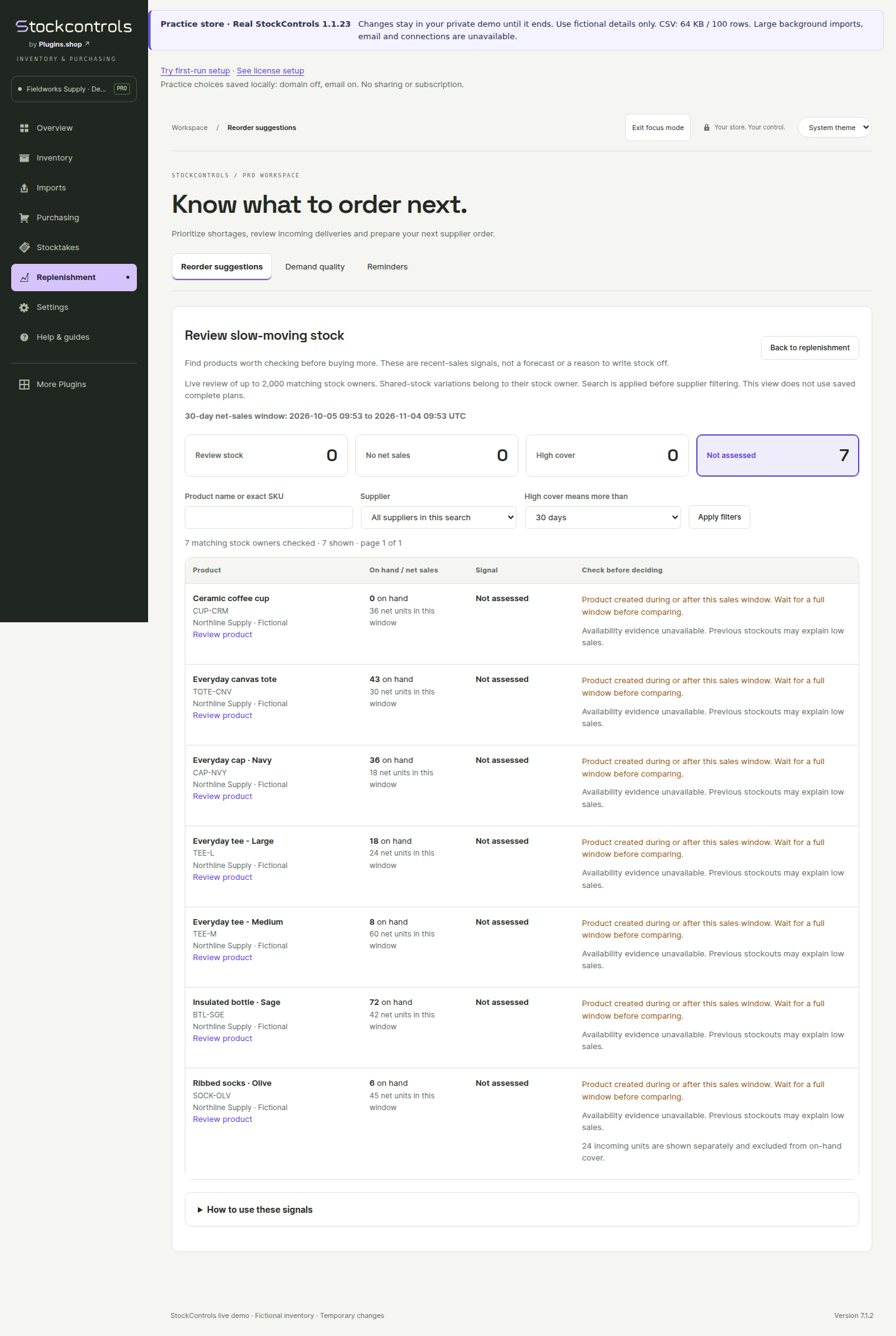
No net sales means no recorded net units in the selected snapshot. It does not prove that the product never sold. Quantity refunds can reduce net sales; negative net sales are distinguished from zero.
High cover compares current stock with recent daily demand against the explicit cover threshold you choose. It is a review signal, not a future-demand forecast.
Not assessed keeps unavailable stock, missing snapshots, young products and pending recovery visible instead of inventing a conclusion.
Availability observations describe the samples actually recorded, not uninterrupted proof that a product was in stock. Missing evidence and an unreadable observation query are different conditions. Earlier samples already normalized by the store cannot be reconstructed retrospectively.
Sales windows, product age, promotions, seasonality, stockouts and pending receipts can change the interpretation. Investigate the reason before discounting, stopping purchases or assuming demand is zero.
Resolve unavailable inventory or pending receipt recovery first. Review the relevant product and supplier, then use replenishment, supplier comparison or your own merchandising process. Stock attention never applies those decisions automatically.
Add a supplier in StockControls → Purchasing → Suppliers, then assign stock-owning products. Open Purchasing → Purchase orders → Create purchase order. Search by product name or SKU, then add lines while editing the draft, up to 50 products from the same supplier. The order list filters by status, overdue delivery, the next seven days or missing delivery dates.
Set quantities, unit costs, shipping, a manually entered tax amount, expected delivery date, supplier reference, and note. Currency precision follows the order’s stored settings. Values are operational purchase records, not an accounting or tax calculation.
New order lines retain a snapshot of the product name, SKU and supplier reference. A name can contain up to 250 characters, a SKU up to 100, and a supplier reference up to 200. An overlong field is identified before the order is created; correct it in the catalog instead of shortening the identifier silently. Existing order lines keep their original identity when amended, even if the catalog changes afterward.
Download PDF or CSV, or use the print view. For names outside the PDF font’s character coverage, the plugin directs you to the Unicode print view for your browser’s Save as PDF. Send the order through your usual supplier channel.
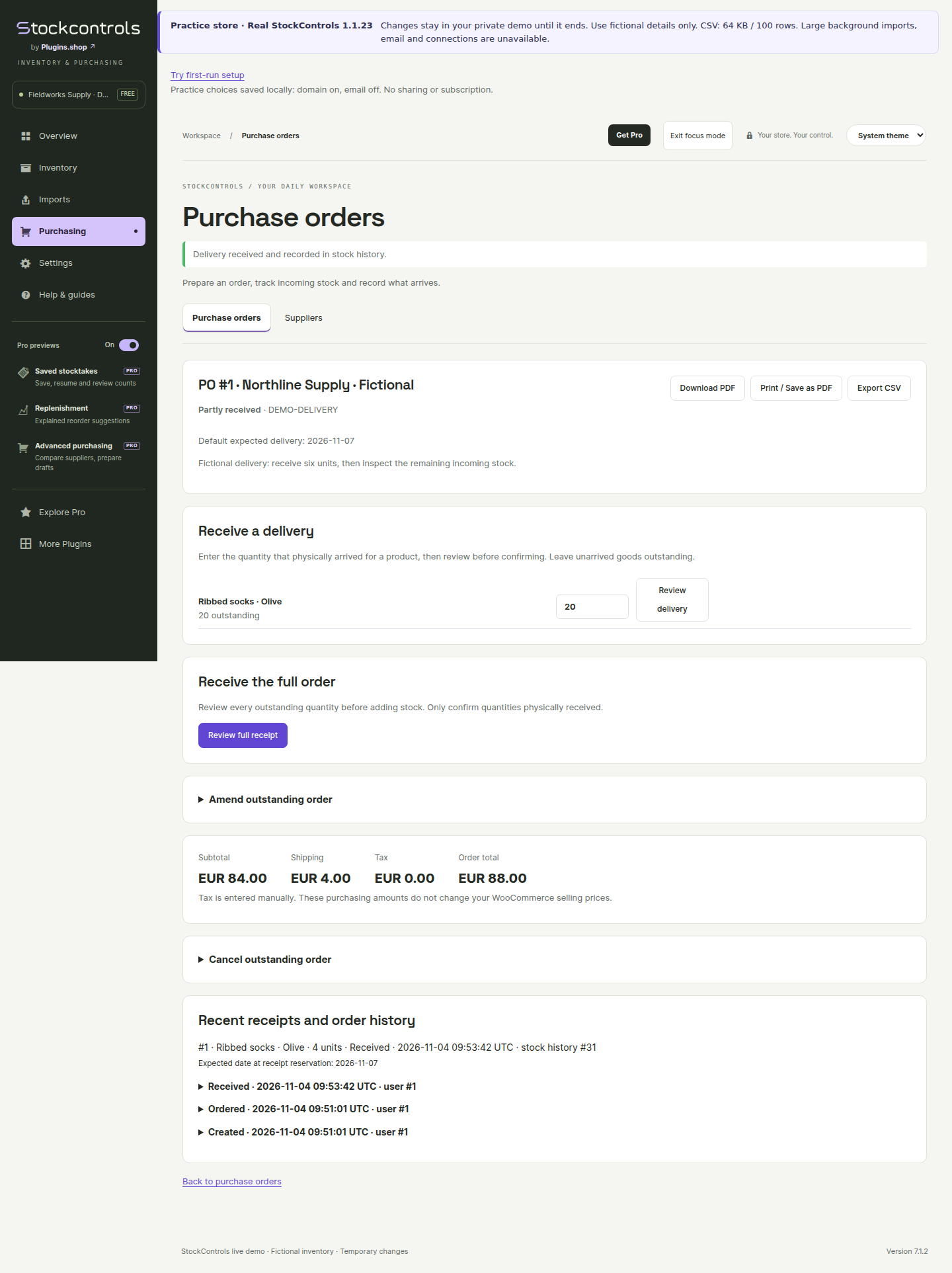
Mark an order ordered only after placing it with your supplier. Its outstanding units become incoming stock. Pro credits quantities due today through the product’s lead-time date and flags delivery risks separately. Free can edit or cancel drafts.
Free can amend quantities and details on an outstanding order, or cancel its remaining commitment, with a required reason. Received units are preserved and quantities cannot be reduced below those already received. A stale revision must be reloaded. Recover any pending receipt before changing the order.
Free: choose Review full receipt only when every remaining item has arrived. Check the listed quantities, then choose Confirm receipt and add stock.
Free: enter the actual quantity received on a line, choose Review delivery and confirm the partial receipt. Outstanding units stay visible until received or cancelled.
Reviewing alone changes no stock. Confirming increases WooCommerce stock and adds a linked StockControls movement. Repeating the same receipt token does not add stock twice. A new receipt is a separate physical delivery; verify it before saving.
Reload the same purchase order and retry its saved pending receipt. If the stock change already committed, recovery uses that recorded result. A full-order receipt may have completed some lines before an interruption; resume that operation rather than creating another.
Do not clear pending records directly in the database. Planning for an affected product and conflicting order changes pause until the pending receipt is resolved. Contact support if recovery cannot complete.
No supplier returns, automatic tax calculation, accounting integration, supplier email/API submission, or warehouse allocation. Supplier contacts, orders, events, and receipts stay in your WordPress database and survive ordinary uninstall.
Current guide · Free + Pro 1.1.23
Enable Manage stock on a sample WooCommerce product, clear the search and check the stock filter. Confirm whether the product owns its stock or inherits a parent’s quantity. Use Setup & health to inspect storage or catalog warnings.
Activate Free first, then Pro. Open StockControls → Settings → Pro license and connect a valid key to unlock Pro operations. If a previously activated site becomes locked, check whether its connection was reset, its URLs or WordPress salts changed, or local storage became unreadable. Existing records remain. A failed remote Disconnect keeps local access; Reset explicitly removes it. Use the current matching 1.1.23 pair and check Pro’s stricter WordPress 6.6 / PHP 8.1 requirements, WooCommerce 9.1+ and the current user’s permissions. The genuine dependency minimum is Free 1.1.23 / API2. Requirements and limits.
Save threshold updates only the low-stock alert level. To change quantity, enter it in the separate stock-change field, add a reason, choose Preview selected changes and apply the reviewed batch. If the threshold result is unconfirmed, keep your unfinished stock draft, follow the reload guidance and check the stored threshold before trying again.
Read the row’s message before retrying. Check the required reason, quantity precision, current stock owner, changed quantities and named-lock/InnoDB support. Reloading is not proof the change failed; inspect history and saved results first.
For stale stock, create a fresh preview. For interrupted work, resume the same batch or import. Do not submit a new correction merely because the response was interrupted.
Complete the sales refresh, check the snapshot date and window, inspect supplier assumptions and review delivery dates. Only outstanding goods due today through the lead-time date reduce suggestions.
Suggestions are zero when stock position is above the reorder point. Overdue, undated or later deliveries may still arrive; check them before buying again. A partial or failed refresh does not replace the last complete snapshot. Planning guide.
Reload the same purchase order and resume its saved pending receipt. Do not create a replacement receipt or clear the record directly. Recovery reuses already committed results instead of adding the same stock twice.
A full receipt can finish some lines before an interruption. Keep its saved operation and contact support if recovery cannot continue. Receipt recovery guide.
Open Setup & health and read the storage or history warning. Acknowledging it changes the reminder for your account; it does not reconstruct missing movements. Contact support if warnings recur. Changes between tracked and untracked stock, uncertain nested callbacks or external writes may leave history incomplete even when the stock save succeeds. Check the actual WooCommerce quantity and the affected operation before attempting another correction. StockControls observes supported WooCommerce hooks, not direct database edits.
Include your Free and Pro versions, WordPress / WooCommerce / PHP versions, classic or HPOS order storage, the exact error and steps to reproduce it. Explain the product’s stock settings and whether it also happens on staging.
Remove passwords, API keys, license credentials, payment details and unnecessary customer data from logs or screenshots. Open a private support ticket or use the email option there. Website tickets use a private link for replies. You can optionally request email updates from that ticket and confirm your address; after confirmation, receipts and future staff-reply alerts contain no private ticket key or conversation text. Keep the private link to read and reply. This is separate from newsletter signup. Email conversations receive replies by email.
When updating from before 1.1.20, rebuild saved replenishment plans. Earlier calculated generations use older stock-reading rules and are deliberately refused. Source products, orders, saved counts and purchasing records remain. Refresh the catalog map or sales if the screen requests it, then build a new plan.
On smaller screens, scroll the table to see all columns.
| Requirement | Free 1.1.23 | Pro 1.1.23 |
|---|---|---|
| WordPress | 6.5+ | 6.6+ |
| PHP | 7.4+ | 8.1+ |
| WooCommerce | 9.1+ | 9.1+ |
| StockControls Free | This package | Minimum 1.1.23 / API2; matching 1.1.23 required |
| Product storage | Standard WooCommerce product store | Same |
| Database | MySQL/MariaDB named locks and InnoDB tables | Same |
Install Free first, then the matching Pro add-on. Network-wide activation and custom product data stores are unsupported.
The mapped path accepts 200 rows / 1 MB, with up to 25 rows applied per click. The separate resumable Large CSV imports path supports 10,000 rows / 10 MB with exact template headers.
CSV guidePro live priority views cover up to 2,000 matching stock owners. Saved complete plans support up to 50,000 owners, subject to time, memory, storage and complete-coverage checks.
Planning guideOne supplier and up to 50 product lines per purchase order. The Pro stocktake selection screen starts a count with up to 25 products from the current page. Reconciliation and receipts use reviewed, bounded work with saved results.
Stocktake guideA sales refresh scans up to 50,000 orders in its chosen window. Shorter windows may be needed. A failed or capped run retains the previous complete snapshot.
Replenishment guideDecimals work only when your WooCommerce configuration preserves the requested precision, up to six decimal places. Standard whole-unit setups reject unsupported fractional inputs. Replenishment suggestions round up to whole units; alternative supplier terms can carry precise quantities when the store supports them.
Stock, audit and purchasing tables need InnoDB and MySQL/MariaDB named-lock support. Unsupported storage cannot accept StockControls stock changes. Your hosting provider can confirm these capabilities.
Warehouse quantity allocation, cross-store synchronization, camera scanning, barcode-label generation, supplier email/API ordering and accounting integrations are not included. A keyboard scanner can enter an exact SKU; saving scanned count progress requires Pro. Unknown stock is labelled unavailable instead of assumed to be zero. Correct its inventory record before relying on a suggestion.
The matched 1.1.23 runtime received selected native checks on the current and minimum environments below. Earlier 1.1.20 coverage remains separately labelled. Requirements are not a claim that every host, theme or extension combination has been tested.
Test your hosting and database configuration, other stock/POS/import extensions, product types, persistent-cache rules, theme, permissions and usual checkout flow. Network-wide activation and arbitrary custom product stores are unsupported. Two-site integration checks are not full multisite certification.
Keep a backup. Install Free first, then matching Pro without uninstalling, and verify a known stock workflow. Rebuild earlier saved replenishment plans after 1.1.20; source records, stocktakes and orders remain.
Current: WordPress 7.1.4, WooCommerce 11.2.1 and PHP 8.5.4. Minimum Free: WordPress 6.5, WooCommerce 9.1.0 and PHP 7.4.3. Minimum Pro: WordPress 6.6, WooCommerce 9.1.0 and PHP 8.1.34.
Selected Free and Pro workflow checks passed on both environments, with controlled fictional licensing responses. The new workspace, Help & guides, More Plugins and Free preview preference also have separate native browser checks. These checks do not establish real payment, inbox delivery or customer-host update delivery.
WordPress 6.5 · WooCommerce 9.1.0
Free-only stock, CSV, receiving and export checks. Selected minimum Free Firefox/WebKit workflows and actual PDF rendering were exercised.
WordPress 6.6 · WooCommerce 9.1.0
Native Pro workflows and authenticated graphical counting, planning, purchasing and CSV checks. This closes the earlier minimum-Pro browser gap. License service responses were fictional.
PHP 8.2.33, 8.3.6, 8.4.26 and 8.5.4 · WordPress 7.1.3 · WooCommerce 11.2.1
Selected stock/history, CSV, purchasing and Pro workflow checks. The late stock-reader correction has separate current/minimum proof.
Native checks used MariaDB 11.8.6 and MySQL 8.0.46. Actual legacy and HPOS WooCommerce order stores were verified separately, with order stock deductions, cancellation, quantity refunds and demand/history checks. A two-site integration used Redis Object Cache 3.0.0 with Predis. These are selected integrations, not coverage of every cache or network configuration.
Firefox 155 and WebKit 26.6 WPE covered current, minimum Free and minimum licensed-Pro workflows with desktop and phone-like viewports. Actual PDF responses were parsed and rendered, including PHP 7.4. Firefox download events passed; WPE was checked through authenticated PDF HTTP responses because its attachment download event was unavailable. These tests do not certify Safari, iPhone, physical devices or assistive technology.
The final 1.1.20 Free archive passed unmodified official Plugin Check 2.1.0 default, expanded and all five runtime checks with Pro physically absent: zero errors and warnings. Both readmes passed the official validator. Private Pro retains two errors and three warnings for its private updater and Update URI under WordPress.org directory rules; runtime checks pass. Pro is distributed privately.
Broader suites used earlier 1.1.20 candidates. The final raw-stock, numeric precision and layout corrections have separate native/browser regressions and fresh exact-archive package checks. PHP 8.2, 8.3 and 8.4 targeted raw-reader results precede the final scientific-notation branch. Earlier results are not relabelled as a complete rerun of every feature on the final archive.
A synthetic 5,000-product import exercised cancellation after 1,001 saves, uncertain-response recovery and a 3,999-row replacement. Final quantities and all 5,000 distinct movements were verified. The shared-host run took about five minutes and observed about 128 MiB peak memory; it is not a guarantee for 128 MB hosting or production checkout load.
Saved plans were checked with 10,000 and 50,000 synthetic products, expected quantities, ordering and totals and selected-supplier rows. A second 50,000-product run covered the corrected raw reader and corrected saved-plan calculations; it used integer stock and predates the final scientific-notation and CSS additions. Its warm shared-host sample used PHP 512M, with default browse samples around 2.4–3.8 seconds. This is not a full-final-package capacity or sustained-load claim.
WordPress automatic update tests on minimum and current Pro stacks preserved selected stock, history, settings, counts, purchasing and local license state. Provider metadata, tickets, signatures and entitlement were controlled fictional fixtures and earlier source generations. They do not prove current paid-provider delivery through a customer host’s ordinary network.
Historical browser-update and TEST-mode payment checks retain their earlier version labels. Genuine paid purchase, renewal, refund, inbox delivery, customer automatic updates and installation of WordPress.org’s actual generated Free ZIP need separate acceptance checks.
The demo shows the real workflow with fictional data. A staging copy checks the fit with your products and extensions.