
Current guide · Free 1.1.27 / Pro 1.1.25
Start with the right kind of count
Saved stocktakes require Pro, including single-operator counts. Free provides immediate manual quantity corrections and SKU lookup. Install the matching Free and Pro packages before starting.
Choose up to 25 products from the current page and start a saved count before changing product pages; selections do not carry across pages. Use stock-owning products and avoid counting the same shared parent stock pool twice. Count available-to-sell quantities: exclude goods already allocated to unfulfilled orders, even if they are physically on the shelf.
View the current demo example · Pro 1.1.25 with Free 1.1.27
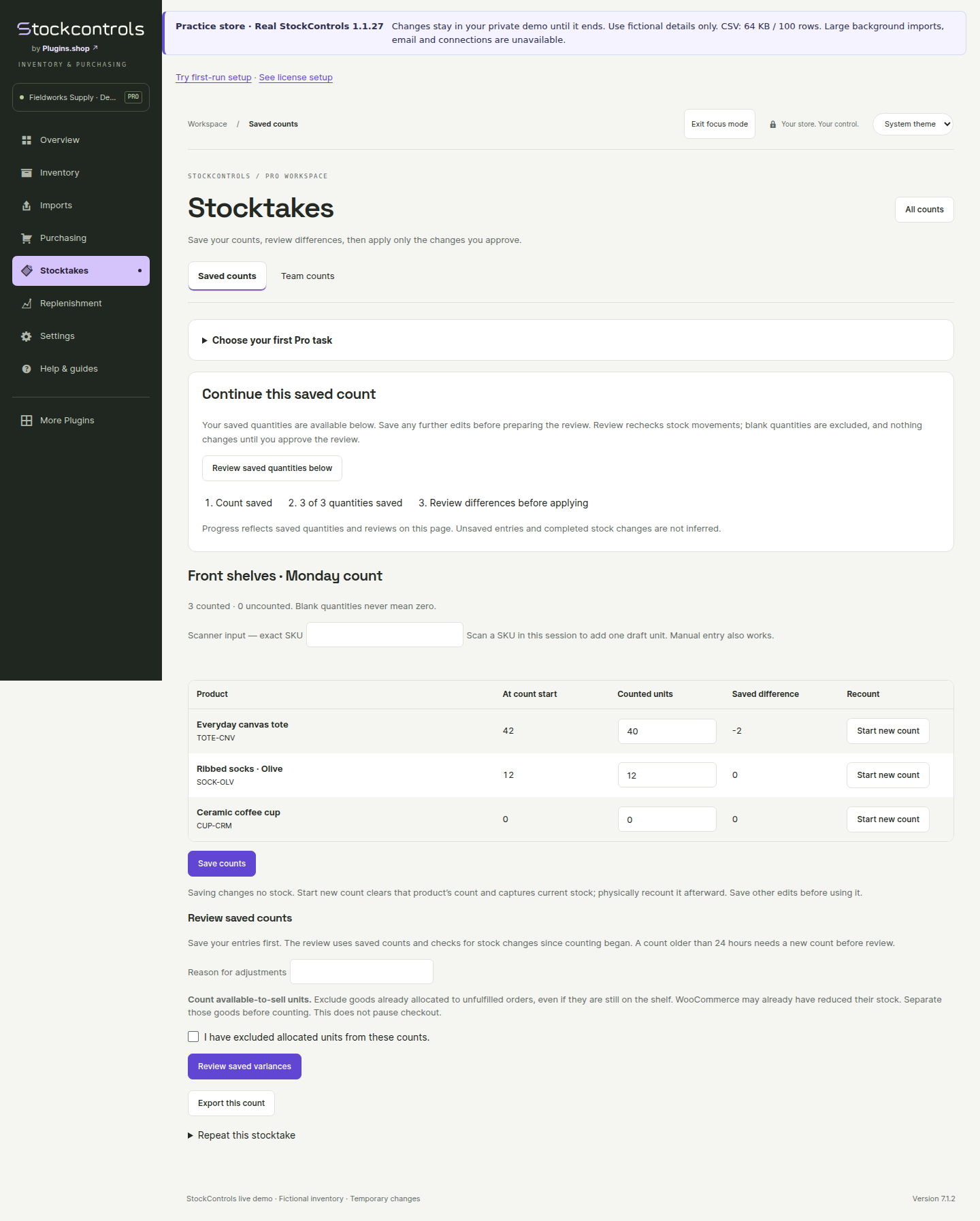
Enter quantities and save progress
Open Stocktakes → Saved counts, record the quantity counted for each line, then choose Save counts. Pressing Enter in a quantity field saves the entered counts. Use the separate Start new count action only when you intend to clear that line’s saved count and physically count it again. The workspace preserves progress so you can return later. Saving a draft does not update live WooCommerce stock.
Counting does not pause checkout. Sales and other stock changes can continue while you work; review any changed stock before applying a correction.
Use a keyboard scanner
For an individual saved count, focus Scanner input — exact SKU and scan a SKU to add one draft unit to a unique matching line. Verify the resulting quantity and save your counts. The separate Team counts screen uses manual quantity entry.
Scanning into a draft does not change live stock. Camera scanning and barcode-label generation are not included. SKU lookup and immediate manual corrections remain in Free.
Count with a team
Create a new count and choose Assign team count before entering any quantities. Assign a different WordPress account with the Stock counter role. Blind counts require a counter without product, report or administration permissions.
The counter enters quantities in Stocktakes → Team counts, saves them and submits the round for independent review. The count creator prepares the stock review, inspects it and approves that exact revision before applying it. A new physical recount records another round; previous rounds remain available. Do not overwrite quantities merely to clear a stale-stock warning.
Review the variance before reconciliation
Compare the starting quantity, counted quantity and difference. Prepare the review, inspect the proposed changes and only then reconcile. Changed stock or stock ownership must be reviewed again; a saved draft is not permission to overwrite a newer sale.
A review can apply in bounded steps. Read saved, rejected and retryable results, and resume the same operation after an interruption instead of creating duplicate corrections. Export the count report when you need a record.
Resume retained work
Deactivating Pro keeps saved counts and batch results but pauses reconciliation. Reactivate a compatible Pro add-on to resume. For an old unstarted review, return to counting and prepare a fresh review when the screen asks for it.
Keep interrupted results for recovery. Do not delete records directly in the database or uninstall a plugin to clear a stuck count. Use the troubleshooting guide or contact support with the count ID and error.
Repeat a previous stocktake
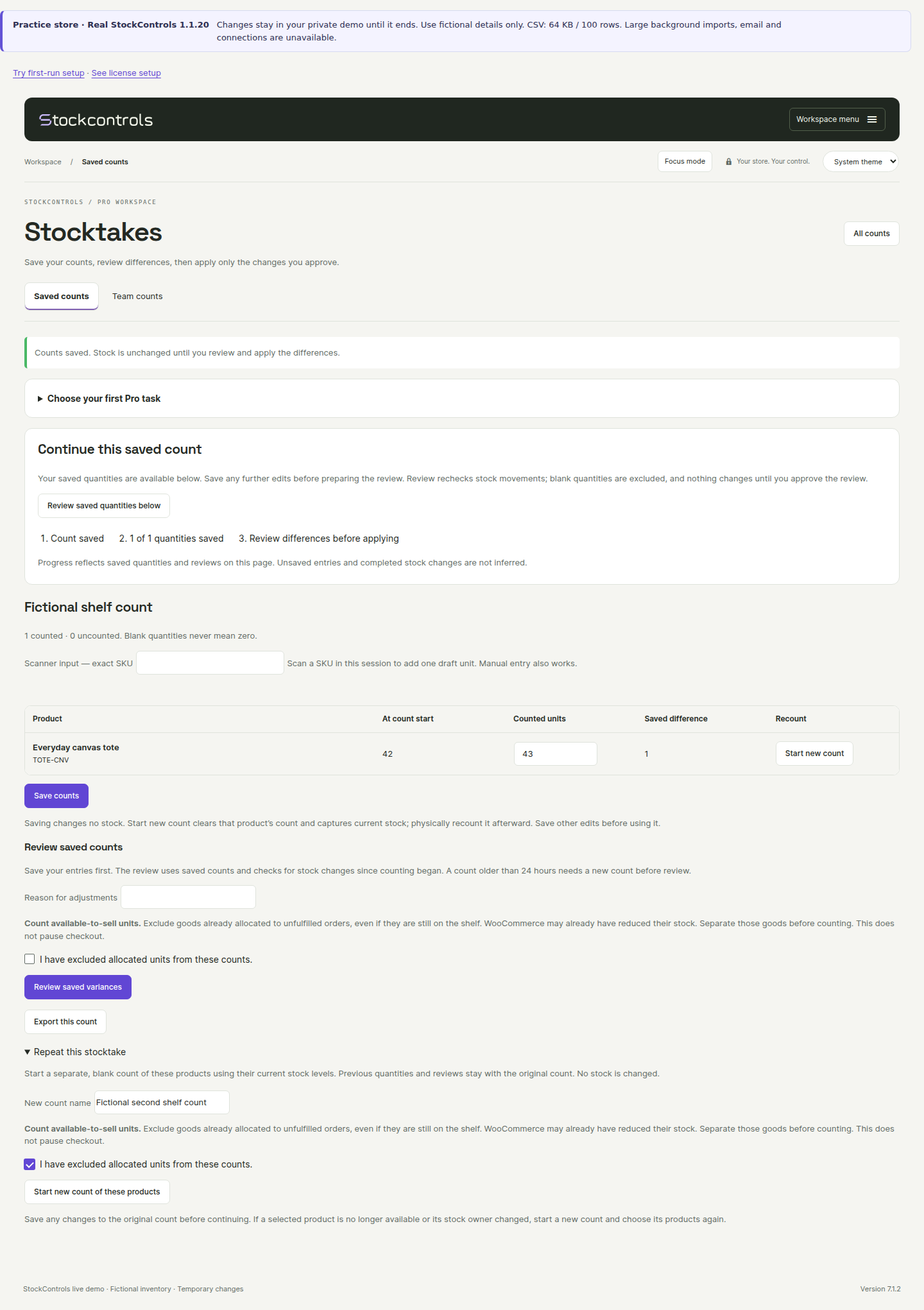
Open an existing saved count and choose Repeat this stocktake. Confirm the current counting basis. Pro starts a separate blank ordinary count using the same selected products and current stock/history baselines. If a selected product is unavailable or its stock owner changed, start a new count and select products again.
The original count stays intact. Counted quantities, team assignments, approval and stock movements are not copied. If the new count is for a team, assign it through the normal team-count workflow before entering quantities.
If a response is interrupted, retry the same submitted form to return to the count it already created. A freshly opened Repeat form intentionally permits another new count. Review the new quantities separately before applying any stock changes.