
Current guide · Free 1.1.27 / Pro 1.1.25
Choose the right import path
Both import paths are included in Free. The smaller mapped importer accepts up to 200 rows / 1 MB and lets you map or ignore columns. The separate Imports → Large CSV imports screen accepts up to 10,000 rows / 10 MB, uses exact template headers and continues as resumable work.
Open Imports → Import stock for the mapped path. Download the template from the path you intend to use. The stock-import template is separate from an inventory export.
View the illustrated example · 1.1.23 interface
Prepare the quantities and identifiers
Use UTF-8, comma-separated values. Supply product_id or sku; if both are present they must identify the same product. Supply exactly one of quantity for an exact count or delta for a signed change. A row reason or default form reason is required.
Use a dot for decimals. Zero is valid for an exact quantity. Optional expected_quantity checks the stock you expected when preparing the file. The large importer accepts the exact headers product_id, sku, quantity, delta, reason, expected_quantity; other headers are rejected.
Quote fields containing commas or line breaks, and double any quote inside a quoted field. Malformed quoting is rejected before review; fix the CSV in your spreadsheet or text editor and upload it again. A rejected upload does not apply stock changes.
A shared stock pool must appear only once. Duplicate products or rows targeting the same stock owner are rejected. Your WooCommerce configuration must preserve any requested fractional precision.
Validate before applying
Upload the file, inspect validation and review the proposed changes. Correct invalid rows before applying. Previewing does not update stock.
Check identifiers, existing quantities, requested quantities and reasons—not only the number of rows. A product that changed after the preview may be rejected for a fresh review.
Continue and inspect the results
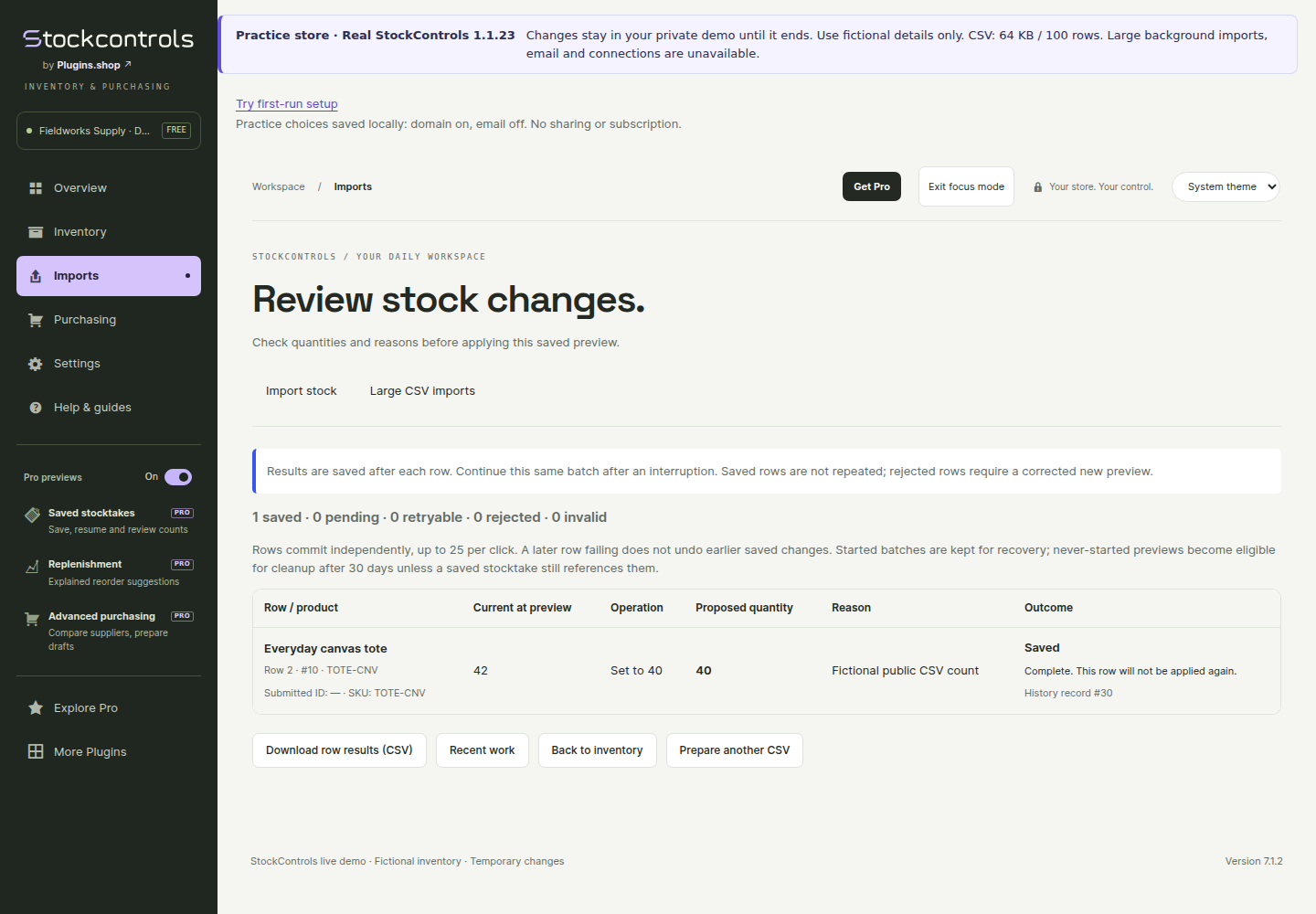
Mapped imports apply at most 25 rows per click. Rows commit independently: a batch can partly succeed. Large imports use their own resumable workflow and row results. Read the saved, pending, rejected and retryable outcomes before continuing.
Reopen the same operation after interruption. Do not assume that a timeout or page reload means nothing was saved. Retry only rows identified as retryable; correct rejected or stale rows in a new preview.
Understand retained work
Unstarted mapped previews expire after 24 hours. Daily cleanup can remove eligible never-started previews after 30 days without an update, unless a saved stocktake references them. All started batches, including completed ones, retain their recovery records while the plugin is active.
Large-import source chunks and results remain after completion or cancellation. Use the separately reviewed finished-import removal action while the plugin is active when you want to remove eligible finished work. Keep an export and backup when required. Never delete active recovery records directly.