Correct the stock owner—the product or variation record that holds the quantity—not every row that displays it. Two variations sharing their parent’s quantity refer to one stock pool, not two independent counts.
StockControls Free distinguishes independently stocked variations from those sharing parent stock. It supports immediate quantity corrections with previews, required reasons and before/after history.
The hypothetical staging example below corrects a shared pool from 12 to 10, while leaving an independently stocked variation at 5. This is an immediate correction, so Pro is not required.
Prepare a safe staging check
Take a backup, work on a staging copy and use an authorized store-manager account. Have stock-managed samples ready: at least one variation using parent stock and one owning stock independently.
Free requires WordPress 6.5+, PHP 7.4+ and WooCommerce 9.1+, plus the documented database capabilities. Follow the installation guide for Setup & health and detailed checks. Test with your own products and inventory-related extensions; version minimums alone do not establish compatibility.
Confirm what physical units each stock pool represents. The plugin cannot establish your physical count or decide whether parent-stock sharing suits your catalogue. If the stock-management configuration appears wrong, investigate it separately rather than trying to repair it through quantity edits.
Map variations, then record each pool’s count once
Search inventory by name, SKU or ID. Use the ownership information to distinguish independently stocked variations from those sharing parent stock. Confirm the associated parent product so you can identify each stock-owning record.
Create a working note in two parts: variation-to-owner relationships, followed by counts recorded once per owner. This is a reader-created note, not an automatically generated plugin report. Do not assume duplicate corrections will be blocked automatically.
Hypothetical ownership map
Suppose parent product 100 owns a shared stock pool. Two variations use it, while a third owns stock independently:
- Variation 101: stock owner is parent product 100.
- Variation 102: stock owner is parent product 100.
- Variation 103: stock owner is variation 103 itself.
Include SKUs in your note where available. Then record the quantities at owner level:
- Owner 100: recorded quantity 12; confirmed physical count 10.
- Owner 103: recorded quantity 5; confirmed physical count 5.
For each owner, note who confirmed the physical count and when. This example assumes no intervening sales, returns, receipts or other stock movements, and that nobody has already posted the correction.
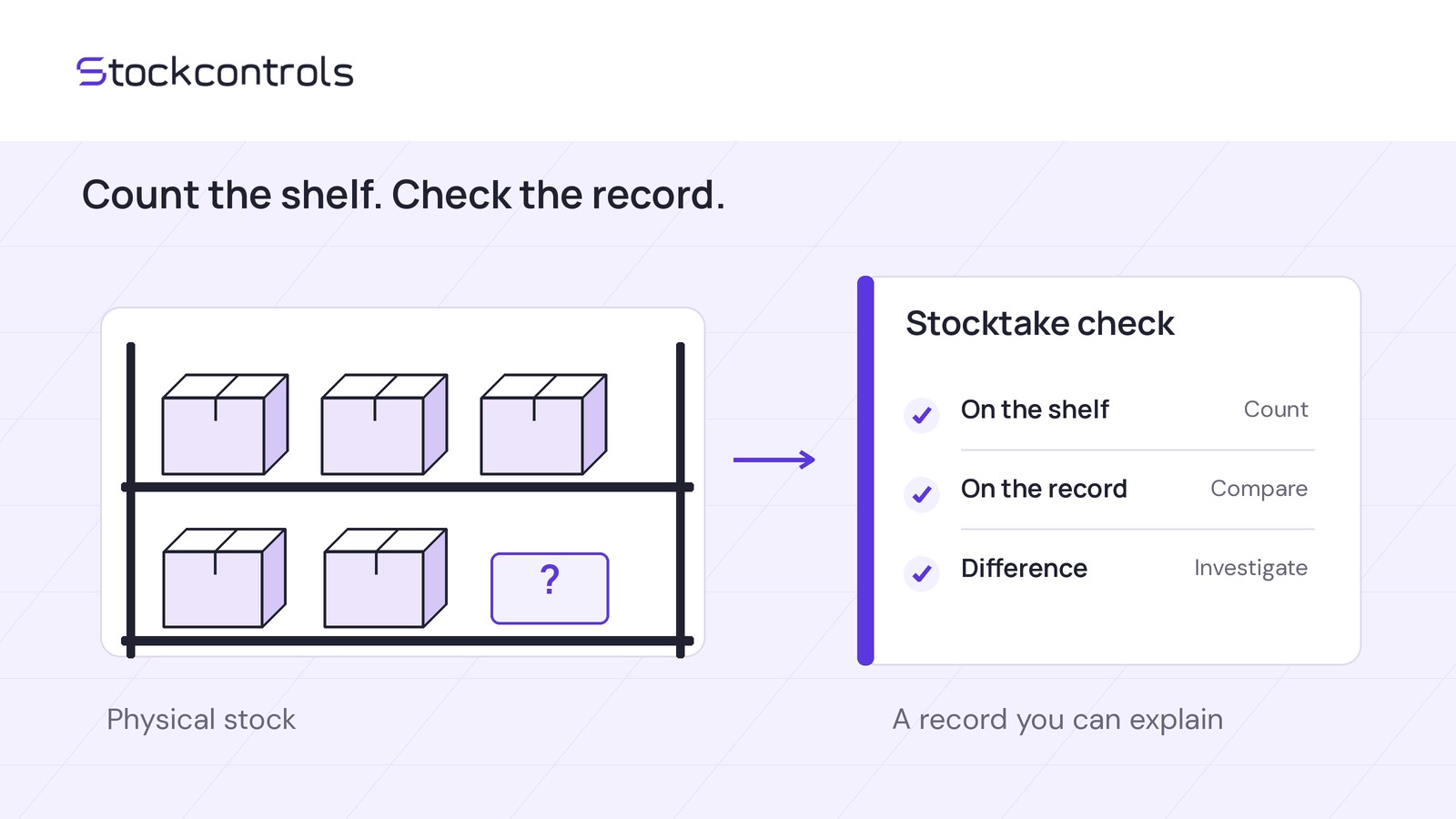
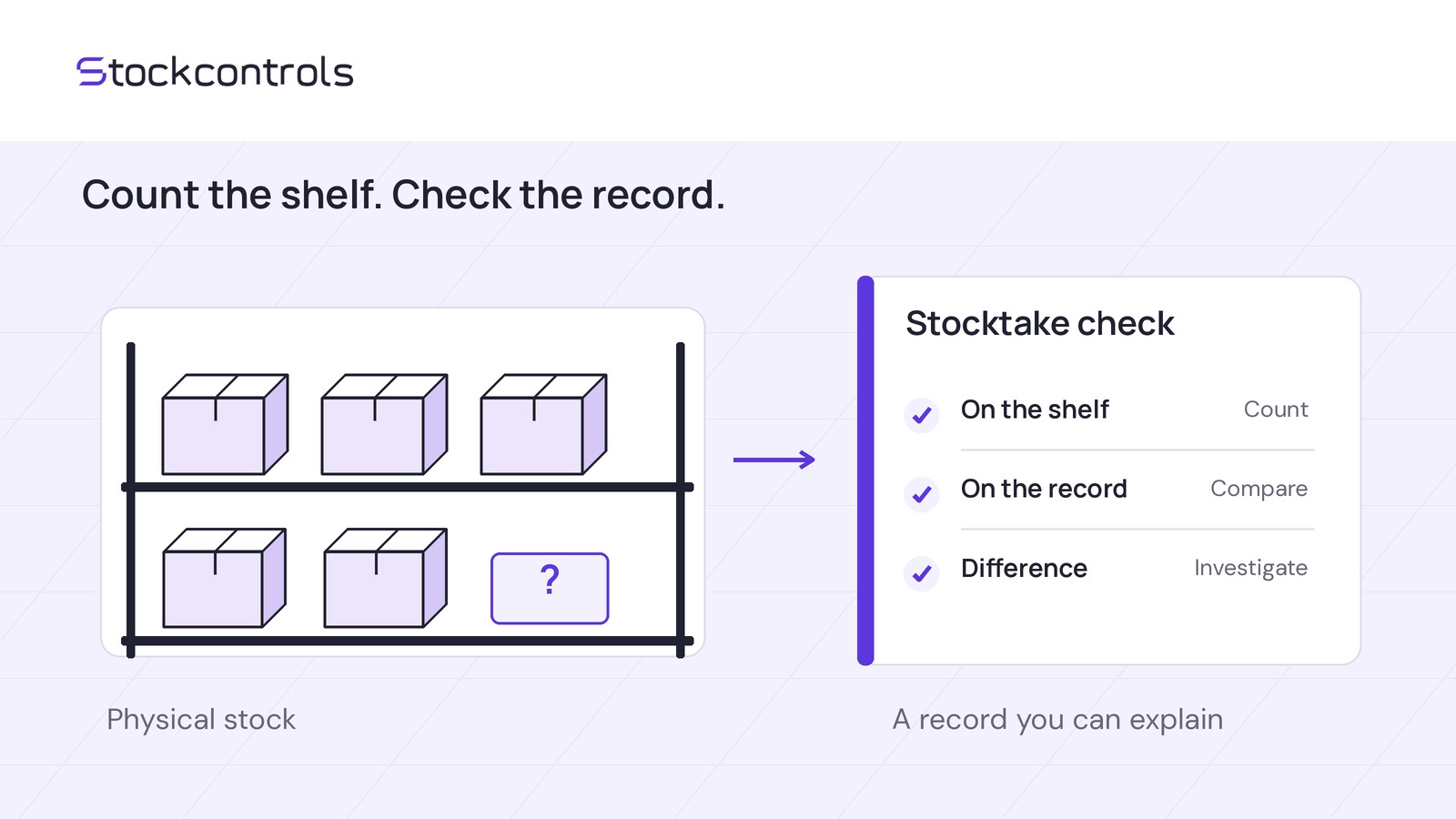
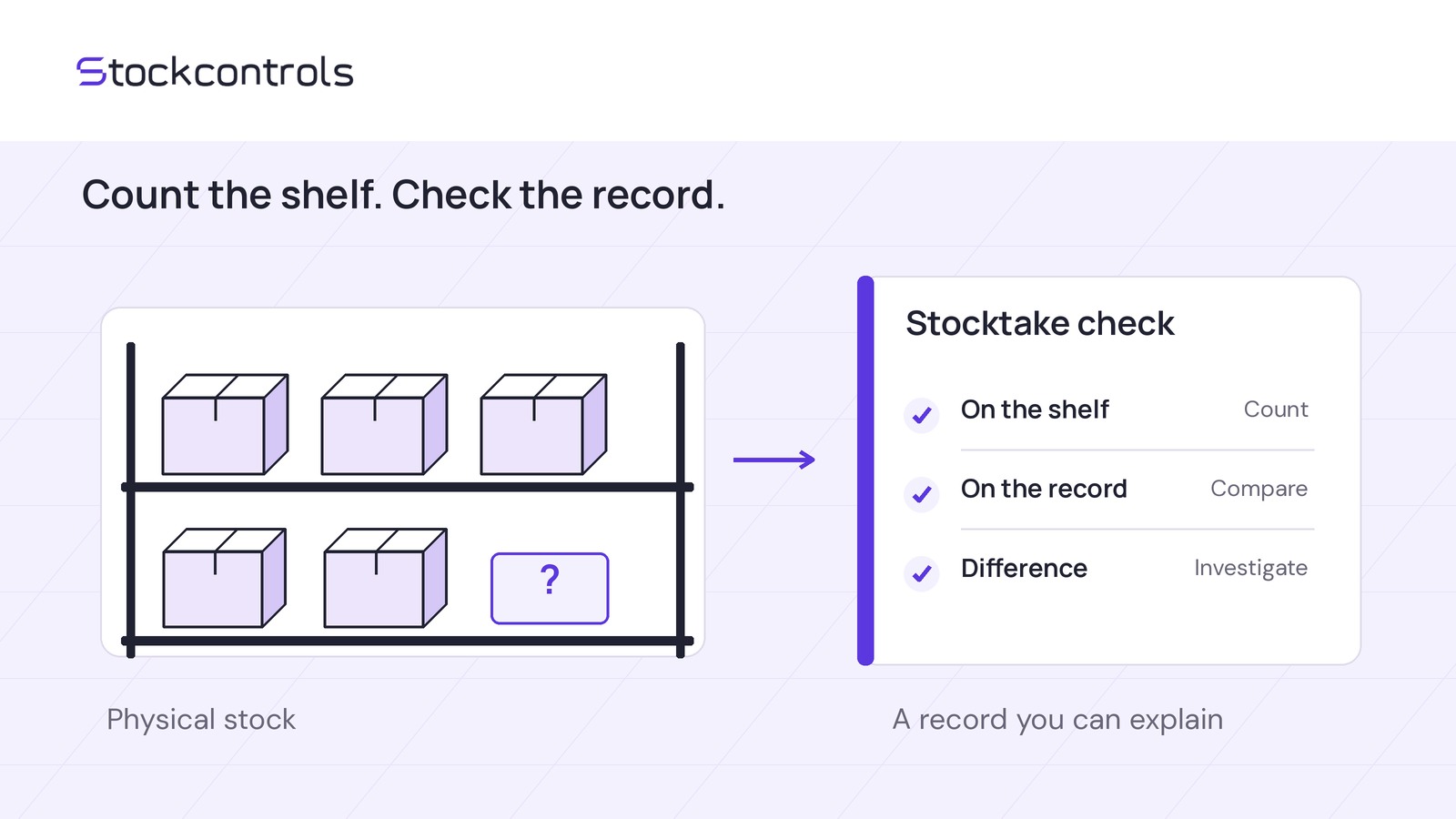
There are three variation identifiers but only two stock pools. Seeing 12 alongside both shared variations does not mean there are 24 units. The physical count of 10 belongs to the shared pool once—not separately to each variation.
Only owner 100 has a discrepancy. Variation 103 needs no quantity change.
Check first, then make one correction
Before entering a change, confirm that variations 101 and 102 still share owner 100, that its current quantity remains 12, and that variation 103 remains independently stocked at 5. Check for movements since counting and whether someone has already applied the correction.
Stop if ownership or quantities differ, movements have occurred, or any check remains uncertain. Investigate and reconcile before editing. Do not force the example’s destination of 10 onto a changed situation. A preview does not validate your physical count or catalogue design.
Once those checks are complete, follow this sequence:
1. Select the stock owner. Locate parent product 100 as the correction target. Do not prepare separate corrections for variations 101 and 102, and leave variation 103 out of the edit.
2. Choose one correction method. Enter a reduction of 2 units, or use exact-count editing with a destination quantity of 10. Use one method, not both.
3. Enter a reason. For example: “Staging count correction: shared parent pool 100 counted at 10, previously recorded as 12; variations 101 and 102 use this pool.”
4. Review the preview. Confirm the target is owner 100, the quantity changes from 12 to 10, the reason describes the count, and independently stocked variation 103 is excluded.
5. Apply once. Apply the reviewed correction, then verify its result before considering any further edit.
Verify the owning quantity and history
Check both the inventory view and WooCommerce. Do not stop at seeing the expected number on one variation row. Use these manual completion checks for the hypothetical example:
Investigate any unexpected additional correction before making another edit. Repeated adjustments are not a substitute for confirming ownership.
StockControls history covers its changes and the WooCommerce stock-change events it observes through stock hooks while the plugin is active. It does not cover changes made before installation or direct database writes. Missing history is therefore not proof that no earlier change occurred.
Choose immediate correction or a saved stocktake
Free fits an immediate correction based on a confirmed count. A manual ownership note does not require a saved stocktake feature. Alternatively, use your existing WooCommerce product stock-editing process and record the map, before/after quantities and reason yourself.
To save and resume a stocktake, review its variances and reconcile it, you need compatible active Pro alongside Free—even for a single operator. Install matching Free and Pro releases, updating Free first. Compare Free and Pro if retaining a counting session is part of your task.
Start with one mixed-ownership product family on staging. Map its stock owners and confirm each pool’s physical count before previewing any correction. Use your sample’s actual quantities; 12, 10 and 5 are illustrative inputs, not values to copy into your store.